Installing IPTV on your device
Choose your device, follow the installation steps and connect your TVNest subscription. Each guide covers the player, account details and the first playback test.
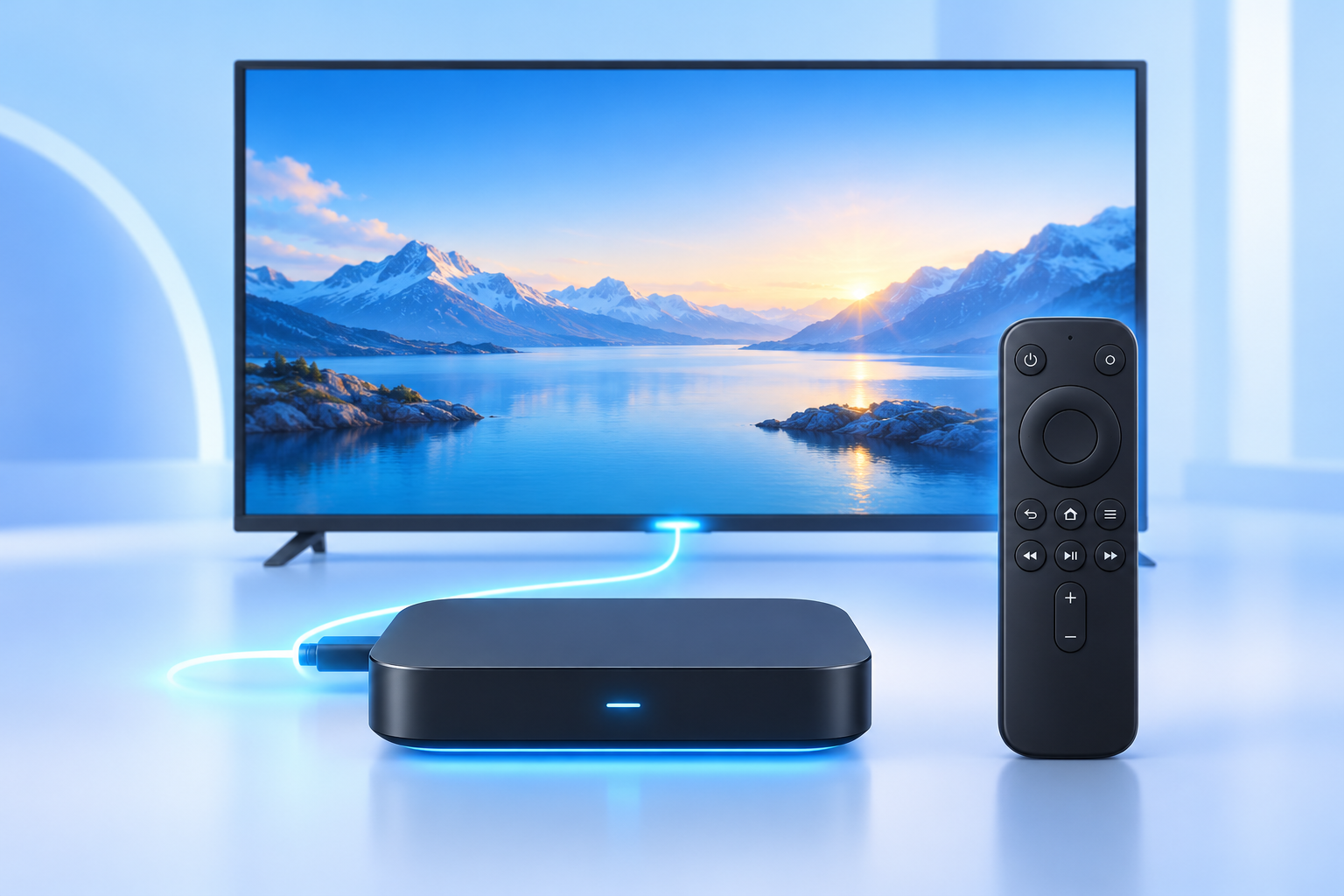
How to install IPTV on Formuler
Connect your Formuler box with MYTVOnline. Add your portal or playlist and start watching with your remote.
Read installation guide
- Connect your box. Connect HDMI to your TV, connect the box to the internet and open MYTVOnline. A wired connection is useful for consistent playback.
- Open Content Sources. In MYTVOnline 3, go to Menu → Content Manager → Content Sources. In MYTVOnline 2, use Menu → Connections. Menu labels vary by version.
- Add your account. Choose Add Portal for a portal or Xtream Codes account. Give it a name such as TVNest. Enter the server address exactly as supplied, then your username and password if required.
- Using M3U? Add a playlist instead and paste your complete M3U URL. If supplied, add the EPG URL to load the programme guide.
- Save and connect. Let the channel list finish loading, open Live TV and test one channel. Refresh the content source if the guide has not loaded yet.
For a MAC-based portal, give support the MAC ID shown by MYTVOnline. Your subscription details determine which connection type to choose.
Formuler setup documentation
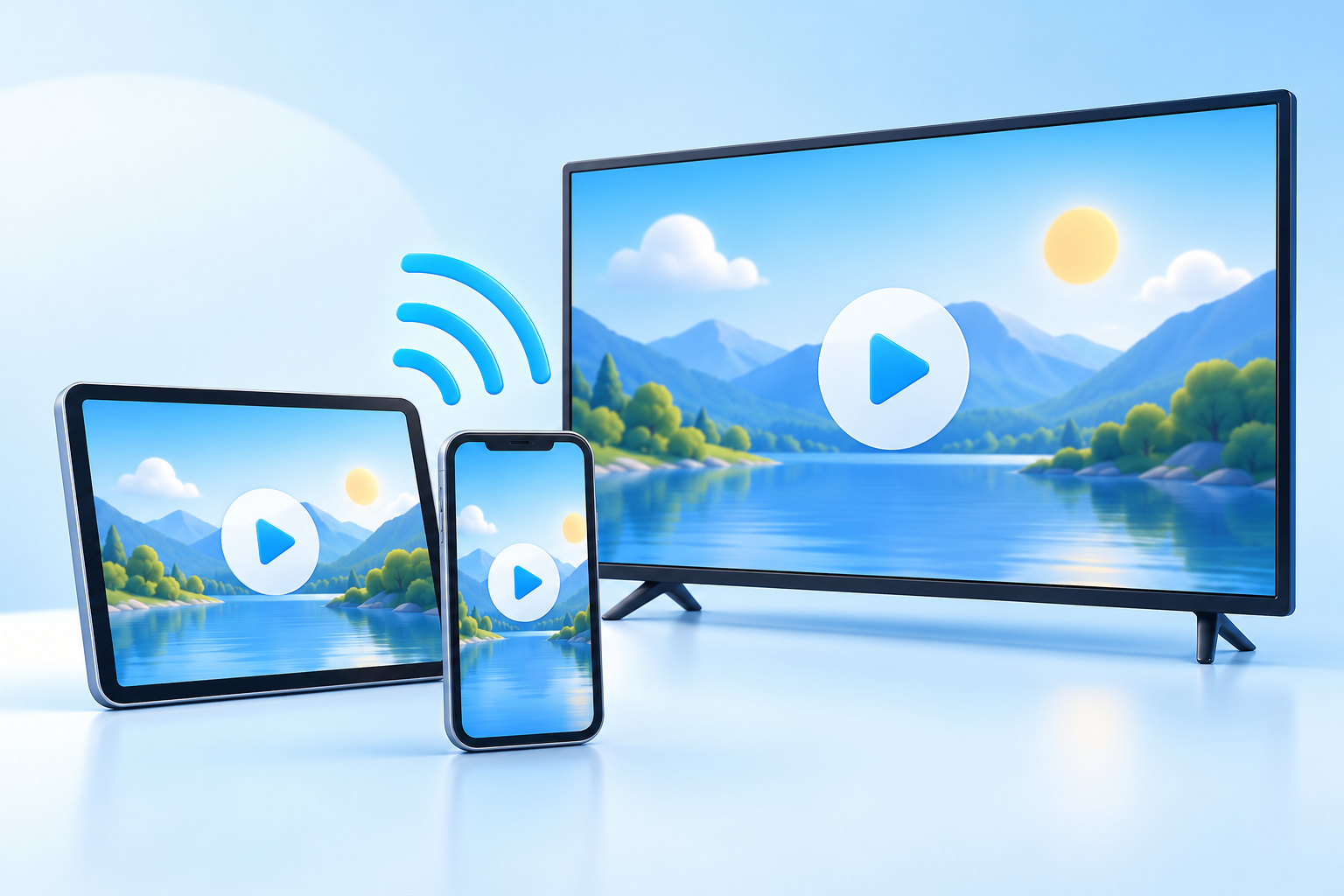
How to set up IPTV on iPhone, iPad or Apple TV
Set up an IPTV player on your Apple device with your account details or M3U playlist.
Read installation guide
- Install a compatible player. Open the App Store on the device and choose a player that supports the account format you received. Check that the listing supports iPhone, iPad or Apple TV as appropriate.
- Add a playlist or account. Open the player and look for Add Playlist, Add User or Xtream Codes. Use Xtream Codes for a server address plus username and password, or M3U for a complete playlist URL.
- Enter your details. Name the account TVNest and copy the supplied details without extra spaces. Keep the server address and playlist link in their original format.
- Load the library. Save the account and allow the first synchronisation to finish. Select Live TV, Movies or Series to test playback.
- Finish setup. Add favourites and select your preferred audio or subtitle track. On Apple TV, use the remote to move between channel groups.
Player availability and features vary between iOS, iPadOS and tvOS. An app purchase does not include a TVNest subscription.
Apple App Store
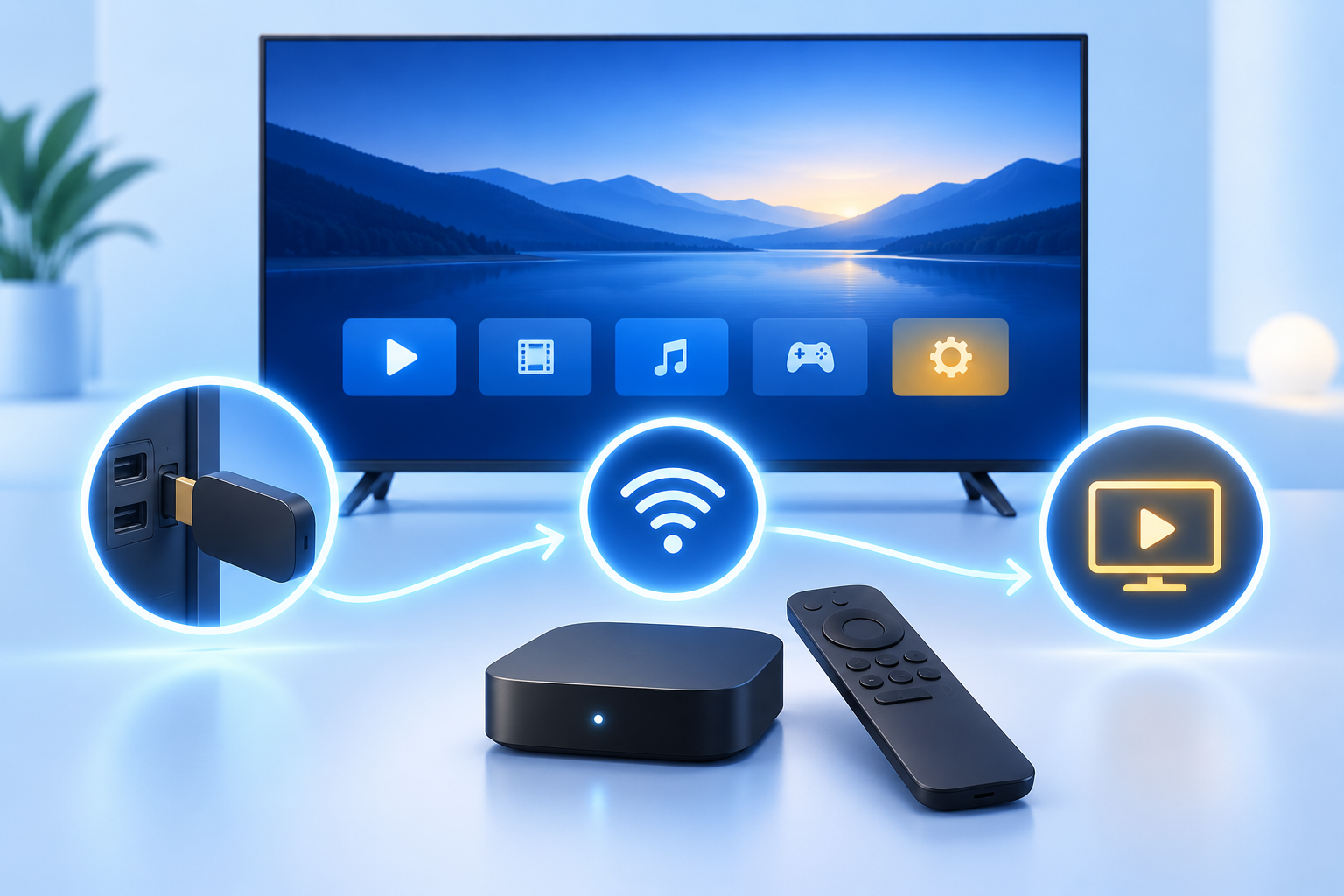
How to install IPTV on Hisense Smart TV
Use the correct player for your Hisense operating system and connect your TVNest playlist.
Read installation guide
- Check your TV platform. Hisense models may use VIDAA, Google TV, Android TV or another platform. Open the TV app store and check the model information.
- Install the player. On a supported VIDAA model, look for SmartOne IPTV in the TV app store. For an Android or Google TV model, follow the Android guide on this page instead.
- Open the app. Note the device or MAC address shown on the screen. Use the playlist management instructions on the player’s official website.
- Add your subscription. Choose the M3U or Xtream Codes option offered by the player. Copy your supplied playlist URL, or enter the server address, username and password.
- Restart and test. Save the playlist, restart the TV app and allow the channel list to load. Open a channel and check audio and picture.
App availability depends on TV model and region. If your model has no compatible player, use an external streaming box.
SmartOne official website
How to set up IPTV on a MAG device
Configure a supported MAG portal using the portal address supplied with your account.
Read installation guide
- Confirm portal support. Contact support with your MAG model and its MAC address before setup. A MAG portal account may need to be registered to that device.
- Open system settings. On a Linux-based MAG box, open Settings → System Settings → Servers → Portals. The names can differ between firmware versions.
- Enter the portal. Set Portal 1 name to TVNest. Paste the exact portal URL supplied for your device into Portal 1 URL. Do not substitute an M3U playlist URL.
- Save and reload. Save the settings and restart or reload the portal. Allow the portal to connect and display the channel menu.
- Test the connection. Open a live channel. If the portal refuses to load, confirm the registered MAC address and supplied portal URL with support.
Android-based MAG models use a compatible Android player or Ministra Player rather than the classic Linux portal settings. Check your model first.
Infomir system settings documentation
How to install IPTV on Fire TV or Fire Stick
Install a compatible Fire TV player, add your account and test live television.
Read installation guide
- Check the device. Open Settings → My Fire TV → About and check the model and operating system. App compatibility can differ between Fire TV generations.
- Choose your player. Search the Amazon Appstore for an IPTV player that supports your account format. Follow the player developer’s official installation instructions for your model.
- Install and open. If the developer provides an official Android installation file for a compatible Fire OS device, follow its download instructions. Use the developer’s current link rather than an old download code.
- Add your TVNest account. Select Xtream Codes and enter the supplied server address, username and password, or select M3U and paste your complete playlist URL.
- Save and play. Wait for the list to load, open a live channel and test the remote controls. Add your favourites once playback works.
If your Fire TV platform does not support the selected player, choose a compatible app from its own store or use a supported streaming device.
SmartOne supported platforms
How to set up IPTV on Android and Android TV
Add your subscription on an Android phone, tablet, Google TV or Android streaming box.
Read installation guide
- Install a compatible app. Open Google Play on your device and choose a player that supports M3U or Xtream Codes. Check whether it is designed for a phone or TV remote.
- Create an account entry. Open the player and select Add Playlist or Add User. Name it TVNest.
- Choose the login format. For Xtream Codes, enter the server address, username and password from your subscription details. For M3U, paste the full playlist URL into the playlist field.
- Set up the guide. If the player asks for an EPG address and one was supplied, add that address. Save the account and allow the initial loading to complete.
- Test playback. Open Live TV and select a channel. Then set favourites, subtitles and your preferred player options. On Android TV, check that navigation works with the remote.
TiviMate is designed for Android TV. Features and licence options vary by player; check the developer’s listing before purchase.
TiviMate official website
How to install IPTV on Samsung or LG Smart TV
Set up a compatible Samsung or LG TV player with Xtream Codes or a managed playlist.
Read installation guide
- Open your TV app store. Use Samsung Apps on a Tizen TV or LG Content Store on a webOS TV. Search for a compatible IPTV player available for your model and region.
- Install and launch. Open the player. Some apps have an on-screen login; others show a device or MAC address for website-based playlist management.
- For a direct login. Select Xtream Codes and enter your supplied server address, username and password. Alternatively, paste your complete M3U link if the app offers that option.
- For playlist management. Use the player’s official upload page. Enter the device identifier shown by the app and add your playlist. Save the entry.
- Restart the TV app. Close and reopen the player to refresh the list. Test a live channel and check that the programme guide appears.
For HotPlayer, playlist management is available on its official upload page. App activation and subscription activation are separate processes.
HotPlayer playlist management
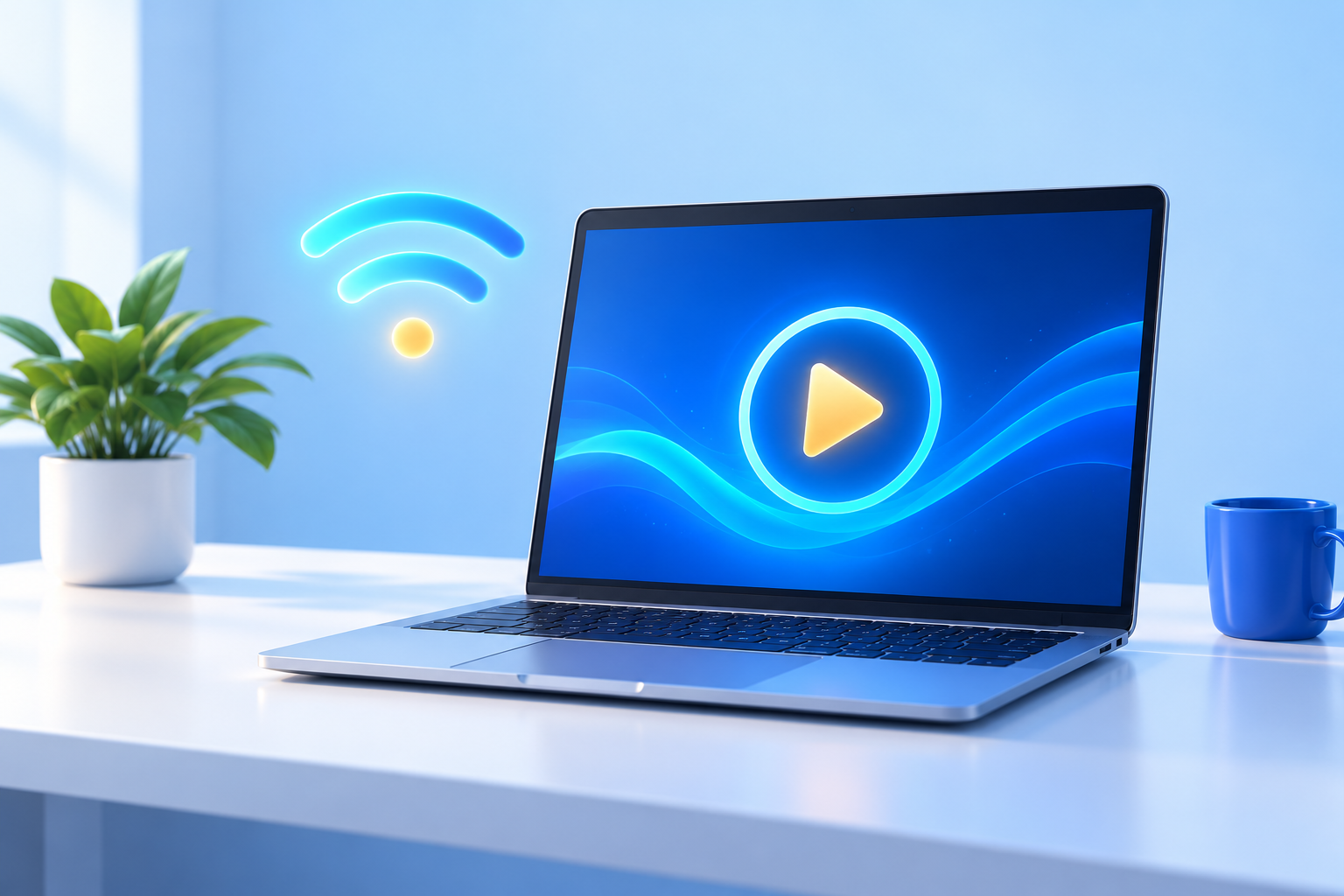
How to install IPTV on Windows
Watch on your PC with a compatible desktop IPTV player and your supplied playlist or login.
Read installation guide
- Choose a Windows player. Use the Microsoft Store or the player developer’s official download page. Check that the app supports your Windows version and your account format.
- Install and open. Follow the installer instructions, then launch the player from the Start menu.
- Add your account. Select Xtream Codes or M3U. For Xtream Codes, enter the server address, username and password. For M3U, copy your complete playlist URL.
- Load the content. Save the account and wait for the channels and available on-demand sections to synchronise. Add the supplied EPG address if the app requests it.
- Start watching. Test one channel, adjust the audio output if necessary and save your favourites. If authentication fails, check for copied spaces and confirm the account is active.
A desktop player licence does not include the TVNest service. Keep your account details private and use only the credentials issued for your subscription.
Microsoft Store
Need help getting started?
Have your device model, app name and the exact error message ready. Double-check the server address and remove any extra spaces from your login details. App licences are separate from your IPTV subscription; availability depends on your device and region.
Contact our team